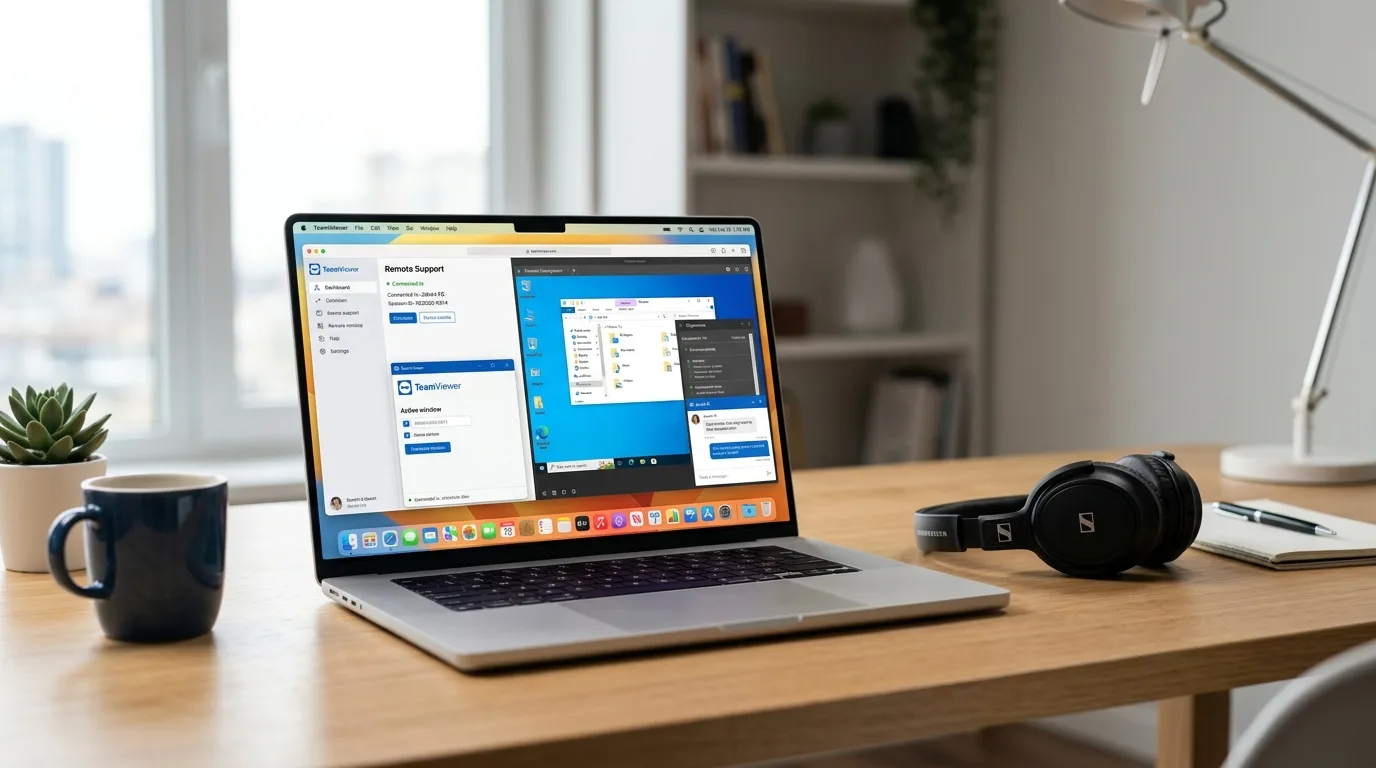
Picture a skilled mechanic who diagnoses and fixes your car engine without you ever leaving your driveway — and does it in under an hour. That is essentially what remote computer repair delivers. A certified technician connects to your PC or Mac over the internet and resolves the problem while you watch everything in real time, from the comfort of your home. No packing up your computer, no multi-day wait, no surprise "diagnostic fee" before work even begins.
For millions of Americans dealing with slow computers, virus infections, Windows errors, and software headaches, remote repair has become the obvious first choice. This guide breaks down exactly how the process works, what the technician can and cannot do, how your data stays safe, and when in-person service is genuinely needed.
What Software Makes Remote Repair Possible
Remote repair relies on remote desktop software — an application that creates an encrypted link between two computers over the internet, allowing one user to see and interact with the other's screen. This is the same technology that corporations use for their IT help desks, and that hospital systems use to support medical staff in remote locations.
IT Cares uses AnyDesk, which has become the professional standard for remote IT support. Here is why it is the right tool:
- Tiny footprint — only 4 MB, no full installation required on most systems
- Fast and responsive — the proprietary DeskRT video codec delivers smooth screen sharing even on cable or DSL connections
- Strong security — 256-bit TLS encryption, RSA 2048 key exchange, and session-only access by default
- Widely trusted — used by Dell, Samsung, NVIDIA, and over 500 million devices worldwide
- No silent background processes — unless you explicitly enable unattended access, AnyDesk does not run when you are not in a session
- Cross-platform — works on Windows 10, Windows 11, macOS, and Linux
The Complete Process, Step by Step
Book your session
Visit itcares.ca/en/remote-computer-repair-usa.html and describe your issue, or call 1 (888) 711-9428. Choose a time — same-day appointments are available. You will receive a confirmation with a link to download AnyDesk and instructions for what to have ready.
Download AnyDesk
Click the link and download AnyDesk directly from anydesk.com — about 4 MB, which takes under 30 seconds on any broadband connection. On Mac, System Preferences may ask you to allow the app under Security settings. No restart is needed. The file can be deleted after the session if you prefer.
Open AnyDesk and get your session ID
Launch the file. AnyDesk displays your unique 9-digit address — this is your one-time session code. Share it with the technician over the phone or via the booking chat. This number changes each session and cannot be reused afterward.
Accept the connection
The technician enters your session ID on their end and a dialog box appears on your screen asking you to Accept or Decline. You click Accept. The technician can now see and control your screen — and so can you. A toolbar with a prominent red "End Session" button stays visible at all times.
Diagnosis
The technician begins by understanding the problem before touching anything. This typically involves checking Task Manager for CPU and memory usage, reviewing Windows Event Logs for error codes, examining startup programs, checking driver states, and asking targeted questions about what changed recently. A proper diagnosis prevents the "try everything and hope" approach that wastes your time.
The repair — live, in front of you
Once the cause is identified, the technician performs the fix while you watch and they narrate. You can pause, ask questions, or end the session at any moment. Every action is visible on your screen — nothing happens behind closed doors.
Verification and payment
Before the session closes, you test the fix yourself. Open the application that was failing, reproduce the problem scenario, confirm everything works. Only after you verify the issue is resolved does payment occur. If the problem could not be fixed, you owe nothing — that is the no-fix, no-charge guarantee.
Can't fix it yourself? Skip the trial-and-error.
Our certified bilingual tech remotes in, reads your system logs, and resolves it on the spot — same day, from $119.99. No fix, no fee.
What Problems Can Be Fixed Remotely
The majority of the issues that make everyday computer use frustrating are software problems — and software problems can almost always be addressed remotely. Here is a realistic breakdown:
| Problem | Remote Fix? | Typical Approach |
|---|---|---|
| Computer running slow | Yes | Startup program cleanup, malware scan, temp file removal, driver update |
| Virus or malware infection | Yes | Full removal with professional tools and security hardening |
| Blue Screen of Death (BSOD) | Yes | Event log analysis, driver fix, sfc /scannow and DISM repair |
| Windows update errors | Yes | Windows Update component reset, error code resolution |
| Email not working (Outlook, Gmail) | Yes | Profile rebuild, sync settings, server configuration |
| Wi-Fi dropping or not connecting | Yes | Driver reinstall, network adapter reset, DNS configuration |
| Printer not detected or printing | Yes | Driver install, print spooler reset, port configuration |
| Software crashes and errors | Yes | Dependency fix, reinstall, compatibility settings |
| Password reset and account recovery | Yes | Windows local account reset, Microsoft account recovery |
| Broken screen or cracked display | No | Physical screen replacement — in-person service required |
| Computer will not power on at all | No | Power supply or motherboard failure — hardware diagnosis needed |
| Physically failed hard drive | No | Drive replacement required; data recovery may need lab work |
| Keyboard or mouse hardware failure | No | Physical component replacement |
Is Your Data Safe? Security Explained Plainly
Security is the most common hesitation people have about remote repair — and it is a legitimate concern worth addressing in detail.
Encryption: what it means in practice
AnyDesk uses 256-bit TLS encryption for everything transmitted during the session. TLS (Transport Layer Security) is the same standard that protects your bank's website and credit card transactions. Even if someone intercepted the data packets traveling between your computer and the technician's, they would see nothing but encrypted noise.
You see everything
This is the most practical safety guarantee: the technician's screen activity is your screen activity. Every mouse movement, every click, every application opened — you see it all, live. There is no hidden mode. If you see the technician doing something you did not authorize, you close AnyDesk and the connection ends immediately.
You can disconnect in one click
AnyDesk keeps an "End Session" button visible in the toolbar throughout the session. Click it at any time, for any reason — no confirmation needed. The technician is disconnected instantly and cannot reconnect without going through the acceptance process again.
Session ends, access ends
When the session closes, the technician's access terminates completely. The session ID that was used cannot be reused. Unless you specifically enabled "unattended access" (which IT Cares does not request for one-time repairs), there is no persistent connection of any kind.
Ready to Get Your Computer Fixed Today?
IT Cares serves customers across the US — remote repair starting at $80 USD. No fix, no charge.
Cost Comparison: Remote Repair vs. In-Store Repair
One of the biggest advantages of remote repair is cost. The comparison is stark when you look at what in-store PC repair actually costs most Americans:
| Option | Diagnostic Fee | Typical Repair Cost | Wait Time |
|---|---|---|---|
| IT Cares Remote (US) | $0 — included | $80 (30 min) / $149 (60 min) | Same day, 20–60 min |
| Big-box retailer tech service | $100–$150 diagnosis alone | $200–$400+ for repairs | 3–7 business days |
| Local computer repair shop | $49–$89 diagnostic fee | $80–$250 per repair | 2–5 days |
| Annual subscription services | $0 | $150–$300/year locked contract | Varies, queue-based |
Beyond the direct dollar cost, consider the hidden costs of in-store repair: driving time, leaving your computer overnight (or for days), the risk of data exposure while it is out of your hands, and the possibility of returning to find the problem "fixed" but new issues introduced. Remote repair eliminates all of that.
US Customers We Serve
IT Cares provides remote computer repair to customers across the United States. We serve everyone from home users in suburban Florida to small businesses in Texas. Our technicians work Eastern, Central, Mountain, and Pacific time zones. A few areas where we have helped customers recently:
- Remote computer repair in Houston, TX — slow PCs, network setup, virus removal for home offices
- Remote computer repair in Phoenix, AZ — Windows 11 upgrade issues, email configuration, printer setup
- Remote computer repair in Austin, TX — software conflicts, performance optimization, malware removal
No matter where you are in the US, as long as you have a working internet connection, a technician can reach you.
Get Your Computer Fixed — No Waiting, No Store Drop-Off
Flat-rate remote repair for US customers. $80 for 30 minutes, $149 for 60 minutes. No fix = no charge.
Frequently Asked Questions
You only need to download AnyDesk — a 4 MB file. IT Cares sends you a direct link. AnyDesk can launch without a traditional installation. After the session you can delete it or keep it for future use. Nothing else is required from you.
No. Every session requires your explicit approval via the Accept button in AnyDesk. The session ID changes each time and cannot be reused. Unless you specifically enable unattended access, the technician cannot reconnect once the session ends.
AnyDesk disconnects automatically. Any work already completed stays in place. Once your connection restores, the technician sends a new request and you click Accept to continue. IT Cares does not charge for reconnections.
Yes. AnyDesk runs on macOS and our technicians handle both Windows and Mac. Remote Mac repair covers software issues, performance, virus removal, email configuration, and more. Hardware problems — broken screen, dead battery, logic board failure — require physical service.
Most common issues resolve in 20 to 45 minutes. Complex cases like a Windows OS rebuild or advanced malware removal can take up to 90 minutes. IT Cares offers flat-rate pricing, so you are not charged extra if a problem is more involved than it first appeared.
IT Cares charges $80 USD for a 30-minute session and $149 USD for a 60-minute session. No diagnostic fee, no subscription, no hidden charges. If the issue cannot be resolved remotely, you pay nothing.
Comments
I was skeptical that someone could fix my computer without being in the room, but this article explained the whole thing clearly. I went ahead and booked a session — my laptop had been crawling for months and two local shops quoted me $180 just to look at it. IT Cares connected within 20 minutes of my booking, found the issue (a startup program conflict and some malware), fixed it in about 35 minutes, and I paid $80. Completely painless.
The step-by-step breakdown here is exactly what I needed before I felt comfortable letting someone into my computer. The technician was professional, explained each step out loud, and my Outlook emails are finally syncing properly after weeks of problems. I watched the whole thing on screen and never felt unsafe. Would definitely recommend to anyone who is on the fence about trying remote repair.
Leave a Comment