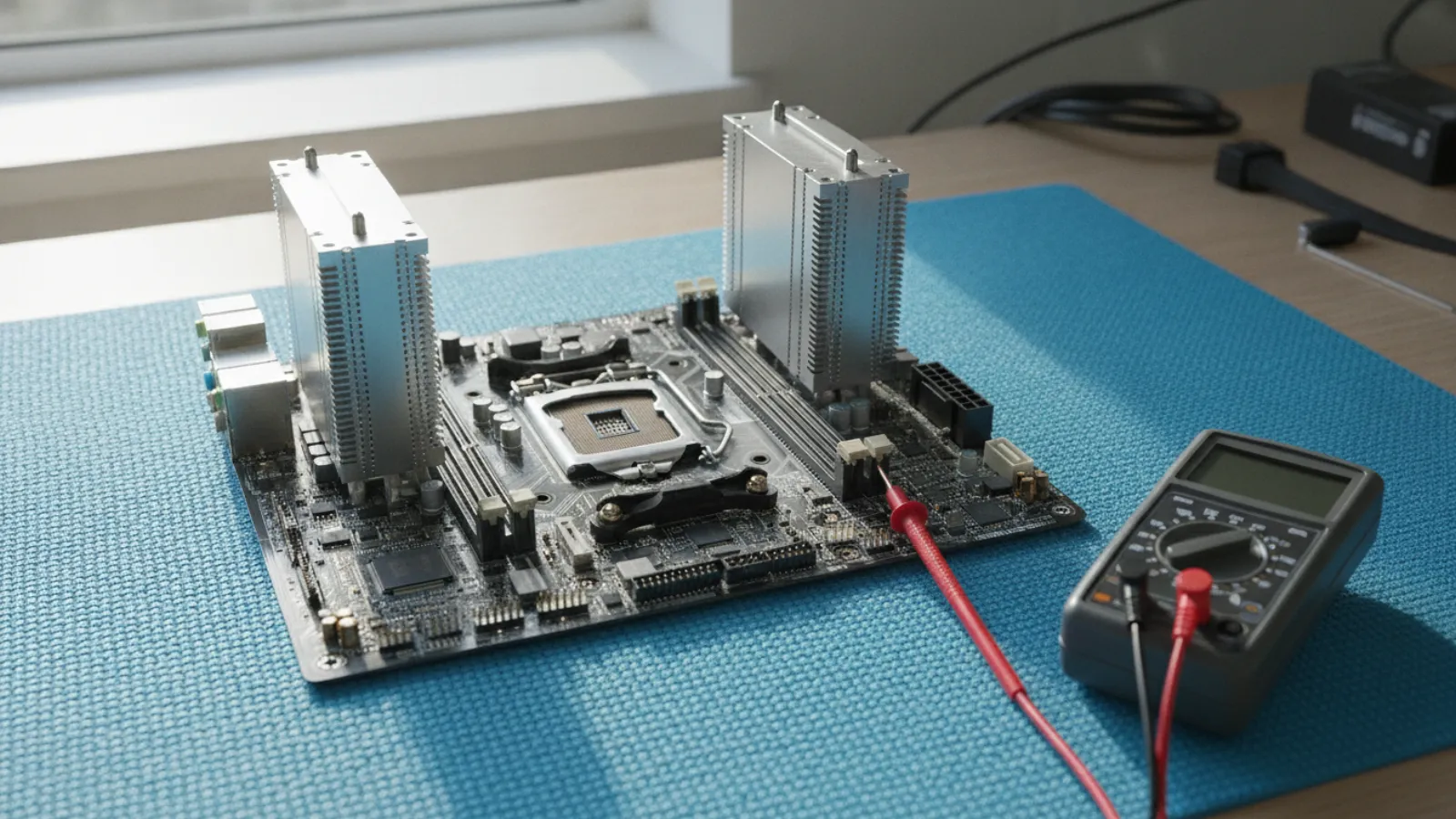
Short answer: A dead motherboard usually shows as no power, no fans, no display and no beep codes, even with a known good power supply, RAM and CPU. Other signs include random shutdowns, dead USB ports, burn marks and swollen capacitors. Strip the system to the bare minimum, test the power supply, and clear the CMOS before you blame the board.
Key takeaways
- Most "dead motherboard" cases turn out to be a failed power supply, bad RAM, a drained CMOS battery or a loose connector.
- Test the cheap, common parts first: power supply, RAM, and the power button wiring.
- Visible damage (burn marks, bulging capacitors, a burnt smell) points strongly to a board fault.
- On laptops, the board is often the most expensive part to replace, so compare the repair quote with the machine's value.
- Always unplug power and ground yourself before touching components.
What a motherboard actually does
The motherboard is the main circuit board that connects your processor, memory, storage, graphics and every port. It also distributes power from the power supply and holds the firmware (BIOS or UEFI) that starts the computer. Because everything passes through it, a board problem can look like many other failures.
That is why a proper test matters. Replacing a motherboard on a desktop can mean changing the CPU cooler, reinstalling Windows or even buying new RAM if the socket type differs. Spending ten minutes ruling out other causes can save a lot of money.
7 signs your motherboard may be dead
1. No power at all
You press the power button and nothing happens: no lights, no fans, no sound. On a desktop, check the wall socket, the power cable and the switch on the back of the power supply first. On a laptop, try a different charger, because a failed adapter looks identical to a dead board. If those are fine, a dead motherboard or power supply is likely.
2. Power on, but no display and no POST
Fans spin and lights come on, but the screen stays black and you never see the manufacturer logo. POST is the power on self test the firmware runs at startup. Failure here can come from RAM, CPU, graphics card or the board itself. Try a different monitor cable and display output first.
3. No beep codes or error LEDs, or the wrong ones
Many boards have a small speaker or debug LEDs (labelled CPU, DRAM, VGA and BOOT) that signal which stage failed. If all lights stay on or no codes appear at all, that suggests a deeper board or CPU fault. Check your board manual for the meaning of the codes, because they differ between makers.
4. Random shutdowns and restarts
If the PC powers off with no warning, even at idle, causes include overheating, a failing power supply or a faulty voltage regulator on the board. Check temperatures in BIOS or a monitoring tool first. If temperatures are normal and the problem continues with a known good power supply, the board becomes suspect.
5. Dead USB ports, SATA ports or RAM slots
One failed USB controller or a few non-working ports can signal a failing chipset. A slot that never recognizes memory, even with a known working stick, is another clue. A single bad port is not always a total failure, but it is a warning sign.
6. Burn marks, a burnt smell or swollen capacitors
With the power off and cables unplugged, look closely at the board with a torch. Capacitors that bulge on top, leak brown fluid or have a cracked vent are failing. Dark scorch spots or a burnt electronics smell mean a component has overheated or shorted. This is among the most reliable visual signs of board damage.
7. Constant freezes, blue screens and corrupted data
Occasional crashes are usually software or driver problems. But if crashes are frequent across different operating systems, drives and RAM sticks, the board may be at fault. Test memory with a tool such as MemTest86 and check the drive's health before concluding it is the board.
Safety first
- Switch off the power supply and unplug it from the wall before opening anything.
- Press and hold the power button for a few seconds to discharge residual power.
- Touch bare metal on the case before handling components, or wear an anti-static wrist strap.
- Never test a power supply by shorting it while it is connected to components.
- If a laptop battery looks swollen, stop using it and do not charge it.
The 10-minute test for desktops
Follow this order. Each step either fixes the problem or removes a suspect.
Minutes 1 to 2: Check the basics
- Confirm the wall socket works with another device, and try a different power cable.
- Make sure the power supply switch is on and the 24-pin and CPU power cables are firmly clicked in.
- Disconnect everything non essential: extra drives, USB devices, add in cards and the case front-panel wiring if you can reach it.
Minutes 3 to 4: Test the power button
If nothing happens when you press the case button, the button wiring may be at fault. Find the two pins on the board labelled PWR_SW or PWRBTN (check the manual). With the PC unplugged and then plugged in again, briefly touch both pins together with a small screwdriver. If the system starts, the case button or its cable is the problem, not the board.
Minutes 5 to 6: Test the power supply
A failing power supply causes more "dead board" diagnoses than the board itself. The best test is to swap in a known good power supply of adequate wattage. If you do not have a spare, use a power supply tester, a cheap tool that plugs into the 24-pin connector and shows whether the rails are present.
The paperclip test only tells you whether the power supply can switch on. With the PSU unplugged from the wall and disconnected from all components, bridge the green wire (PS_ON) on the 24-pin connector to any black (ground) wire with a bent paperclip, then plug the PSU in and switch it on. If the fan spins, the unit can start, but this does not prove it delivers stable voltage under load. Use a tester or a spare for a better answer.
Minutes 7 to 8: Strip down to the minimum
- Unplug the PC and remove all drives, add in cards and extra RAM.
- Leave one stick of RAM in the slot recommended by the manual (often the one furthest from the CPU, labelled A2, though check your board).
- If the CPU has no integrated graphics, keep the graphics card installed. If it does, remove the graphics card and use the motherboard video port.
- Connect the monitor, keyboard and power, then try to start.
- Try each RAM stick alone, in each slot, to rule out bad memory or a bad slot.
Minutes 9 to 10: Clear the CMOS and reseat
- Unplug the PC.
- Remove the round CMOS battery (usually a CR2032 coin cell), wait one minute and fit it back in. Alternatively, use the clear CMOS jumper as described in your board manual.
- Reseat the 24-pin power cable and the CPU power cable.
- Power up. If the system now starts, the issue was corrupted settings or a flat battery. A new CR2032 costs very little and is worth replacing anyway.
If you still have no power, no POST and no beep codes after these steps, with a tested power supply and known good RAM, the motherboard (or the CPU) is the likely culprit.
The test for laptops
Laptops are harder to test because most components are soldered. Do this:
- Unplug the charger and, if the battery is removable, take it out. Hold the power button for 30 seconds to drain residual charge.
- Plug in the charger without the battery and try to power on. If it works, the battery is bad.
- Try a different, compatible charger. Check whether the charging light or the charger's own LED comes on.
- Connect an external monitor. If the external screen works, the laptop display or its cable is bad.
- Remove and reseat RAM if it is in a socket (many modern thin laptops solder the memory, so you cannot).
- Listen for fan spin, drive sounds and keyboard backlight. A laptop with no signs of life on a good charger usually has a board or DC jack fault.
Mistakes that make a good board look dead
- Forgetting the CPU 8-pin power connector. Many boards will not start without it.
- Using the wrong RAM type or speed that the board does not support.
- Leaving a spare motherboard standoff under the board, causing a short.
- Bent pins in an Intel socket or a poorly seated CPU.
- Plugging the monitor into the motherboard when a graphics card is installed (or the opposite).
Repair or replace?
If the board is confirmed dead, the choice depends on the machine.
- Desktop: Replacing a board is a standard job. Make sure the new board matches the CPU socket and RAM type, or you will need to replace those too. Windows may need to be reactivated or reinstalled.
- Laptop: Boards are brand and model specific and often one of the costliest parts. For an older laptop, the repair quote may exceed what the machine is worth. Ask for a written quote and compare it with a replacement.
- Data: Your drive is usually fine. Take it out and recover your files with a USB enclosure before disposing of the machine.
When to call a professional
Seek help if you smell burning, see scorched areas, have swollen capacitors, work on a laptop, are not comfortable handling internal parts, or the machine is under warranty. A technician has bench power supplies, diagnostic cards and spare parts to confirm a diagnosis in minutes and can often recover data from the drive before any repair.
Not sure what is wrong? Get a diagnosis first.
Our certified tech can connect remotely, check your software, drivers and backups, and tell you honestly whether the problem needs a hands-on repair.
Frequently asked questions
Can a dead motherboard be repaired?
Sometimes. A technician can replace failed capacitors or voltage regulators on some boards, but board level repair is often not cost effective on mass produced desktop boards. Laptop board repair is more common, but quotes vary.
How do I know if it is the motherboard or the power supply?
Swap in a known good power supply or use a PSU tester. If a good supply fixes the problem, the board was fine. If the board still does not respond with a verified supply, the board becomes the leading suspect.
Can a bad CMOS battery stop a PC from booting?
Usually it causes lost clock settings and a "CMOS checksum" or date error, and on some boards it can prevent a normal boot. Replacing a CR2032 battery is cheap and quick, so it is worth trying.
Can bad RAM look like a dead motherboard?
Yes. A faulty memory stick or slot can give you a black screen, beep codes or constant restarts. Testing with one known good stick in a single slot is part of the standard test.
Will I lose my data if the motherboard dies?
Normally not. Data lives on your SSD or hard drive, not the board. You can connect the drive to another computer or an enclosure to copy your files, unless the drive itself is damaged.