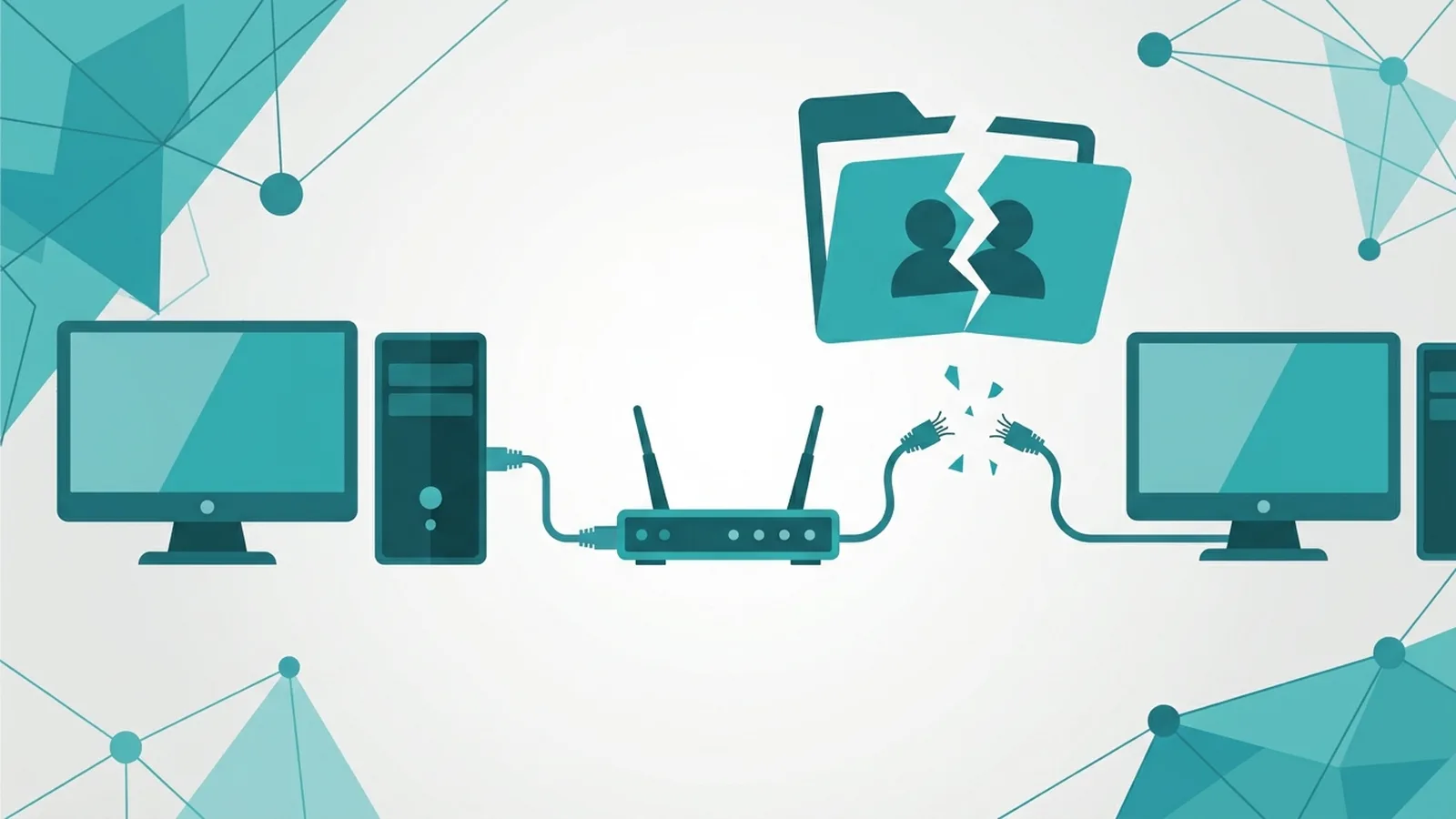
Error 0x80070035 appears when Windows tries to open a shared folder or another PC on your network and cannot reach it, so it reports "The network path was not found". The cause is almost never a broken Windows install: it is usually name resolution, a disabled sharing setting, a firewall or VPN in the way, or a credential mismatch. Test the connection by IP address first, because that single test tells you which half of the problem you have.
Key takeaways
- Try \\192.168.x.x\sharename instead of \\computername. If the IP works, the problem is name resolution, not sharing.
- Both machines need Network discovery and File and printer sharing enabled on a Private network profile.
- Saved or wrong credentials in Credential Manager cause many "path not found" and access-style failures.
- Do not enable SMB1 or insecure guest logons as a quick fix. There are safer options.
- A VPN, a second network adapter or a "Public" profile often explains why it worked yesterday and not today.
Why you are seeing "The network path was not found"
The full dialog reads "Windows cannot access \\COMPUTERNAME" with "Check the spelling of the name. Otherwise, there might be a problem with your network" and the code 0x80070035. The path you typed, or clicked in File Explorer's Network view, did not resolve to a reachable file-sharing service on the other end.
Three layers have to work in sequence for a shared folder to open: the name must turn into an address, the address must be reachable on the network (including through firewalls), and the other computer must accept your sign-in. Error 0x80070035 normally means the first or second layer failed. When the third layer fails you typically see a different message about permissions or "Access is denied", although in practice the wording varies between Windows builds.
Common triggers we see
| Cause | How to recognise it | Fix section |
|---|---|---|
| Name does not resolve | \\192.168.1.20 works but \\PCNAME fails | Test by IP, then fix discovery or use a hosts entry |
| Network profile set to Public | The PC no longer appears in Network view after an update or reconnect | Switch the profile to Private and enable discovery |
| File sharing services stopped | Neither name nor IP works from any other PC | Restart the sharing services |
| Firewall or third-party security suite | Fails only on one machine, ping works but shares do not | Check the File and Printer Sharing rules |
| VPN or extra virtual adapter | Works with the VPN off, fails with it on | VPN section |
| Old saved credentials | Password on the other PC changed or Microsoft account was linked | Credential Manager |
| Older NAS or device using SMB1 only | A NAS, scanner or old PC fails while modern PCs connect fine | SMB caution section |
Step 1: Prove whether it is a name problem or a path problem
On the PC showing the error, press Windows+R and enter the share by address. First find the other computer's IPv4 address by running ipconfig on it. Then, from the failing PC, test in this order:
ping 192.168.1.20
ping COMPUTERNAME
\\192.168.1.20
net view \\192.168.1.20
Read the combination of results:
- IP ping works, name ping fails: name resolution is the issue. Go to step 2.
- Both ping, but the \\IP path fails: the sharing service or firewall is blocking port 445. Go to steps 3 and 4.
- Nothing pings: the machines are not on the same network, one is asleep, or a firewall blocks ping. Confirm both are on the same router and subnet, and check for a guest Wi-Fi network or VPN.
Some firewalls block ping by default while still allowing file sharing, so a failed ping alone is not a verdict. The \\IP test is the more useful one.
Step 2: Fix network discovery and the network profile
On both computers, open Settings, then Network and Internet, and select the active connection (Wi-Fi or Ethernet). Under Network profile type, choose Private. Then open Settings, Network and internet, Advanced network settings, Advanced sharing settings and, under Private networks, turn on Network discovery and File and printer sharing. Windows only applies those two settings correctly to the profile you are actually connected with, which is why a connection that quietly flipped to Public after an update breaks sharing.
If you only need the share and do not care about browsing the Network view, you can skip discovery and map the folder by IP, which avoids most name-resolution weaknesses:
net use Z: \\192.168.1.20\Shared /persistent:yesReplace Shared with the real share name. Using a mapped drive by IP is also how we stabilise setups where one old device never shows up in Network view.
Step 3: Make sure the sharing services are running
On the computer that hosts the folder, open services.msc and check that these are running and not disabled. Set Startup type to Automatic if they are stopped:
- Function Discovery Resource Publication
- Function Discovery Provider Host
- SSDP Discovery
- UPnP Device Host
- Server (the service that actually hosts shares)
- Workstation
Then, from an elevated Command Prompt, confirm that the host is really sharing something:
net share
net start lanmanserver
If net share lists nothing besides the default administrative shares, the folder was never shared or the sharing was removed. Right-click the folder, open Properties, then the Sharing tab, and use Advanced Sharing to share it with a clear name.
Step 4: Check the firewall and security software
Open Windows Defender Firewall, choose Allow an app or feature through Windows Defender Firewall, and make sure File and Printer Sharing is ticked for Private networks on the host. If a third-party security suite is installed, it may run its own firewall and ignore the Windows setting. Temporarily pausing it for a single test (and turning it back on straight after) shows whether it is the blocker. Do not leave protection off while you investigate.
You can also test whether port 445, the port used by file sharing, is reachable from the failing PC:
Test-NetConnection -ComputerName 192.168.1.20 -Port 445Run that in PowerShell. A result of TcpTestSucceeded: True means the network path is open and the remaining problem is naming or credentials. False means something between the two PCs is blocking it.
Step 5: Clear stale credentials in Credential Manager
Windows caches the sign-in used for each network target. If the password changed, if the other PC switched from a local account to a Microsoft account, or if two different usernames were tried, the old entry can keep winning. Open Control Panel, then Credential Manager, then Windows Credentials. Remove any entries that match the other computer's name or IP, then reconnect and enter the credentials again. Prefer the format COMPUTERNAME\username for a local account on the host.
You can also clear a stuck connection from the command line:
net use * /delete
net use \\192.168.1.20\Shared /user:COMPUTERNAME\username
The first line disconnects all current mapped drives, so only run it if you can remap them afterwards. Windows prompts for the password after the second line.
Step 6: When a VPN is involved
A VPN client can send local-network traffic into the tunnel, hide the local subnet, or add a virtual adapter that Windows prefers over your real connection. Symptoms are specific: shares open fine with the VPN disconnected and fail when it is connected, or the reverse when you want to reach an office share from home.
- Disconnect the VPN and retry. If it works, check whether the VPN has a "allow local network access" or split-tunnelling option.
- From home to an office share, use the office server's address or the fully qualified name that the VPN's DNS can resolve, not the short computer name.
- Run
ipconfig /alland check which adapter is active and which DNS servers are listed. An extra virtual adapter with a different DNS suffix is a common reason short names stop resolving.
Step 7: Refresh name resolution
If the IP works but the name does not, flush and re-register the local resolver and reset the network stack. Run these in an elevated Command Prompt, then restart the PC:
ipconfig /flushdns
ipconfig /registerdns
netsh winsock reset
netsh int ip reset
These two commands also remove any manually set static IP address, so note it first.
As a stable workaround for one important machine, you can add a line to the hosts file at C:\Windows\System32\drivers\etc\hosts that maps the IP address to the computer name. That only works if the host keeps the same IP, so give it a DHCP reservation on the router or set a fixed address.
Not sure what is wrong? Get a diagnosis first.
Our certified tech can connect remotely, check your software, drivers and backups, and tell you honestly whether the problem needs a hands-on repair.
The SMB1 and guest-logon trap
When an older NAS, scanner or Windows 7 machine will not connect to a current PC, many online guides tell you to turn on the SMB 1.0 feature or to allow insecure guest logons. Current Windows 10 and 11 builds do not install SMB1 by default, and many block insecure guest logons, because both are old weaknesses that ransomware has used to spread across networks.
If you decide the risk is acceptable on a closed home lab, the option lives under Windows Features (Turn Windows features on or off, SMB 1.0/CIFS File Sharing Support). We would rather you document and limit it than leave it on indefinitely.
What not to do
- Do not disable the Windows firewall permanently. Test, then re-enable it and add the correct rule.
- Do not share the whole C: drive to "make it work". Share one purpose-built folder.
- Do not reset the whole network from Settings before you have tried the \\IP test. It wipes Wi-Fi profiles and VPN adapters and rarely fixes a single-share problem.
- Do not enter your Microsoft account password into random "network repair" tools found online.
- Do not edit the registry to force guest access without understanding what you are exposing.
When it is time to call a professional
The error is a network symptom, so data-loss risk is low, but some situations need a technician:
- The shares live on a business server, domain or NAS that holds client records, and you are not sure about the permission model.
- The problem started with a router replacement, ISP change or new VLAN and several devices lost each other.
- The device looks reachable but a drive or NAS is making noise, rebuilding, or showing disk warnings.
- You suspect malware: unknown shares, repeated lockouts, or files renamed in bulk.
Our team can look at the connection through a secure session using the remote repair service, and the Windows support page shows what else we cover. If sharing broke right after an update, the guide to Windows Update stuck or failing explains how to check what changed, and our page on error 0x80070005 (access denied) helps when the message changes to a permission problem.
Keeping shared folders reliable
- Give the hosting PC or NAS a fixed IP or a router reservation.
- Set home and office connections to Private when you trust them.
- Use one named account for sharing rather than relying on guest access.
- Map important folders by IP so a name-resolution hiccup does not stop work.
- After large Windows updates, recheck the network profile and sharing settings.
- Keep NAS and router firmware current so you can stay on SMB2 or SMB3.
FAQ
What causes Windows error 0x80070035?
It is caused by Windows being unable to find or reach the shared resource. Typical reasons are name resolution failure, disabled network discovery, a firewall rule, a VPN, or stale credentials.
Why does the IP address work but the computer name does not?
The share is reachable, but Windows cannot turn the name into an address. Fix discovery, flush DNS, use a hosts file entry, or simply map the drive by IP.
Do I need SMB1 to fix 0x80070035?
Usually not. SMB1 is disabled in current Windows for security reasons. Update the device to SMB2 or SMB3, or isolate it, instead of re-enabling SMB1.
Why does the error appear only when my VPN is on?
The VPN may route local traffic into the tunnel or change DNS. Look for a local network access or split tunnelling setting, and use the server's resolvable address.
Does 0x80070035 mean someone changed my password?
Not by itself. Stale credentials can cause related sign-in problems, so removing the old entry in Credential Manager is a sensible step, but the code mainly points at reachability.
Which network profile should I use for file sharing?
Private. The Public profile hides the PC and restricts sharing, which is why it breaks access after a connection change.
Is it safe to turn off the firewall to test?
A very short test is acceptable on a trusted network, but turn it back on immediately and create the proper File and Printer Sharing rule instead.