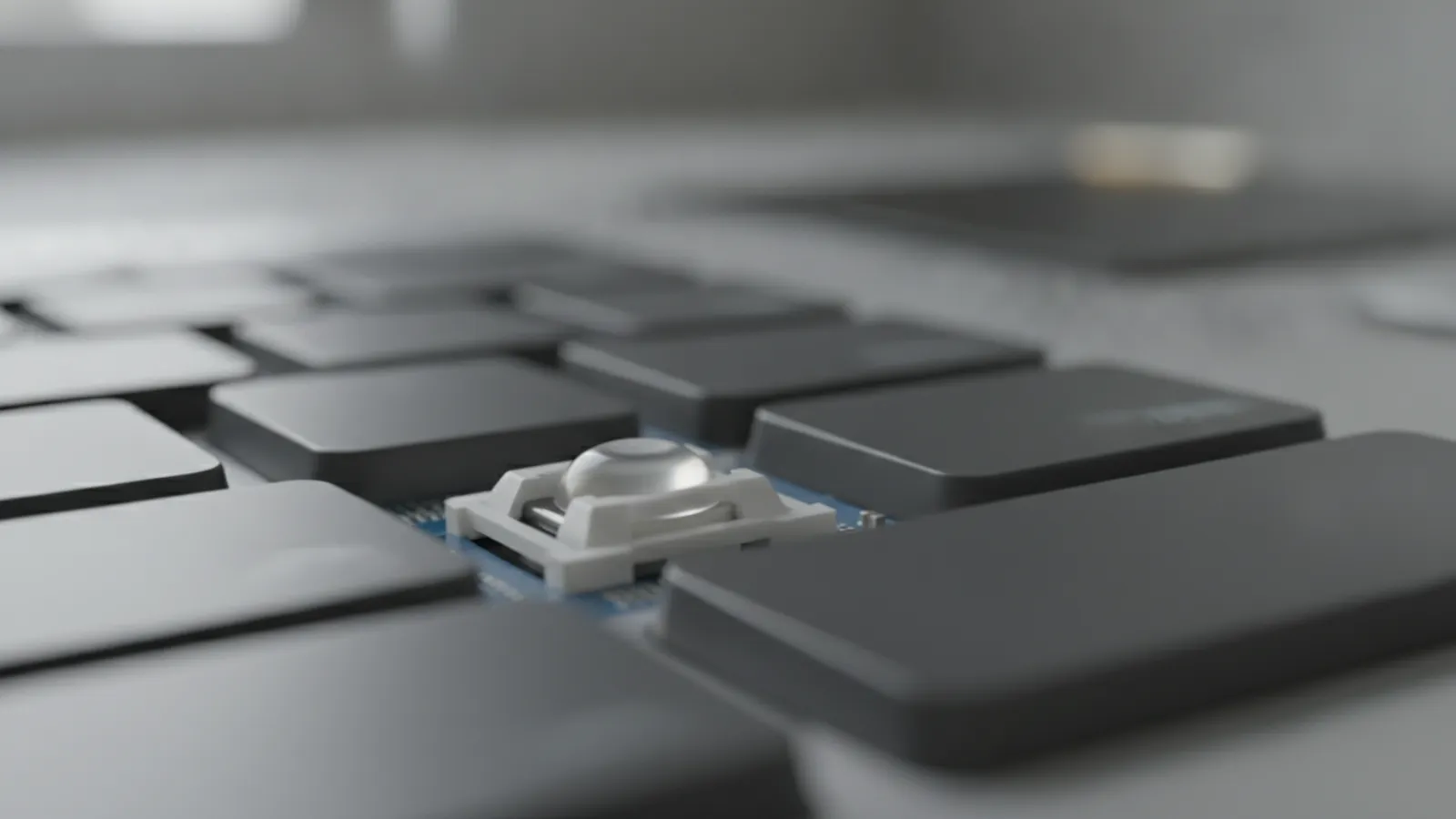
MacBook keys stop working because of dust or crumbs under the key, a software setting such as Slow Keys, or a failed keyboard or connector. Test with the Keyboard Viewer first, clean with short bursts of compressed air, then check settings. Many fixes are free. A hardware replacement usually means changing the whole top case.
Key takeaways
- Work out whether the problem is software or hardware before you spend money. The on-screen Keyboard Viewer helps.
- Models with the butterfly keyboard (MacBook 2015 and 2016 to 2019 MacBook Pro and 2018 to 2019 MacBook Air) are more prone to dust problems. Check Apple's current program status for keyboard service in your region.
- Do not pour liquid cleaners into the keys or pry off keycaps on a butterfly keyboard, as it breaks easily.
- On many MacBooks the keyboard is built into the top case with the battery and trackpad, so a repair can be expensive.
- If a whole row or the entire keyboard fails, or liquid was spilled, power off and get it inspected.
Why MacBook keys stop working
A typed character goes through several steps: the physical key is pressed, a mechanism registers contact, a ribbon cable carries the signal to the logic board, and macOS interprets it. A fault at any step can make a key silent, sticky, double-typing or dead.
The most common causes are:
- Debris under the keycap. Dust, crumbs and hair can stop a key from registering, especially on thin butterfly mechanisms.
- Accessibility settings. Slow Keys, Sticky Keys or Mouse Keys change how keys respond and can look like a fault.
- Wrong input source or layout. If a symbol appears instead of a letter, the keyboard language may be wrong.
- Software conflict. A third-party remapping tool, a stuck login item or a corrupted preference file.
- Liquid damage. Sugary drinks leave residue that corrodes contacts. See our page on water damaged MacBook repair.
- A failing keyboard ribbon, top case or logic board component. Whole sections stop at once.
- A swollen battery. On many MacBook Pro models, a swelling battery presses on the trackpad and keyboard from below.
Know your keyboard generation
MacBooks have used three main keyboard designs, and the repair path is different for each.
- Butterfly keyboard (2015 12-inch MacBook, 2016 to 2019 MacBook Pro, 2018 to 2019 MacBook Air). Low travel, thin mechanism, sensitive to dust. Keycaps are fragile and not designed for home removal.
- Scissor keyboard (2019 16-inch MacBook Pro and 2020 onwards). Apple returned to a scissor mechanism, called the Magic Keyboard, which tolerates dust better.
- Older pre-2015 scissor keyboards. Keycaps can sometimes be removed carefully, and parts are cheaper.
Apple has run keyboard service programs for butterfly models in the past. Check Apple's current program status for your model and region rather than assuming you are covered or not covered.
Step-by-step: diagnose before you repair
Step 1: Test with the Keyboard Viewer
Open System Settings, go to Keyboard, and enable the on-screen Keyboard Viewer (the option name varies by macOS version, and you can also find it under Input Sources). Press the problem key and watch whether the matching key on screen lights up. If it lights up, the hardware sends a signal and the problem is software, layout or the app you are typing into. If nothing lights up, the key or its circuit is not registering.
Step 2: Test in another account and in Safe Mode
Create a temporary user account in System Settings, then log into it. If the key works there, your original account has a bad setting or conflicting software. Also try Safe Mode:
- Apple silicon: shut down, hold the power button until startup options appear, select the disk, hold Shift, click Continue in Safe Mode.
- Intel: restart and hold Shift until the login window appears.
Step 3: Check Accessibility and input settings
In System Settings, open Accessibility, then Keyboard. Turn off Slow Keys, Sticky Keys and any other options that change how presses are read. Then check Keyboard, Input Sources and make sure only the layout you use is active. Remove any key remapping utilities and test again.
Step 4: Reset NVRAM on Intel Macs
On Intel Macs, shut down, then start while holding Option, Command, P and R for about 20 seconds. This resets certain stored settings, and it sometimes fixes odd behaviour. Apple silicon Macs reset these settings automatically at startup, so there is no key combination to use. Resetting the SMC on Intel models also exists, but the steps differ for Macs with the T2 security chip, so follow Apple's current instructions for your exact model.
Step 5: Clean around the keys with compressed air
Debris is the leading cause of sticky, silent or double-typing keys, particularly on butterfly keyboards. Apple's guidance for these keyboards has long been to use compressed air. A cautious version of that approach is:
- Shut the Mac down and unplug the charger.
- Hold the MacBook at about a 75 degree angle, with the screen tilted back towards you.
- Use a can of compressed air with the straw attached. Spray in a left to right sweeping motion across the keyboard, in short bursts. Do not hold the can close or shake it, which can release liquid propellant.
- Rotate the Mac to its right side and repeat, then to its left side and repeat.
- Restart and test the problem keys with the Keyboard Viewer.
Do not use vacuum cleaners with strong suction near the keys, and do not spray liquid cleaners, alcohol or water into the keyboard. Do not try to pry off the keycaps of a butterfly keyboard, because the plastic clips snap easily and the replacement keycap parts are often not sold separately in a way that is simple to fit.
Step 6: Look for signs of a bigger problem
Some keyboard faults are really something else. Look for these signs:
- A raised trackpad or a bulge near the keyboard. Stop using the Mac and have the battery checked. Our MacBook battery replacement page explains the service.
- Keys that fail after a spill. Power off at once and leave it off. Do not charge it. See water damaged MacBook repair.
- A whole row, or the entire keyboard and trackpad, dead at once. That suggests a ribbon cable, top case or board fault, not a single key.
- Keys that type on their own or repeat. Can be dirt, a damaged keyboard, or a dying component.
Step 7: Use an external keyboard to keep working
A USB or Bluetooth keyboard works fine while you decide what to do. It also helps diagnose: if macOS behaves normally with an external keyboard and the built-in keys still fail, you have confirmed that the built-in keyboard hardware is at fault. You can also use the on-screen keyboard from the Accessibility settings for urgent typing, such as entering a password.
Model-specific notes
Butterfly keyboard models (2015 to 2019)
The thin mechanism under each key is more sensitive to small particles than earlier designs. Typical symptoms are a key that feels mushy, double-types, or stops responding, and the fault often sits on a single key such as the space bar, E, R, or the arrow keys. Apple has offered keyboard service programs for affected MacBook, MacBook Air and MacBook Pro models in the past, with eligibility depending on model and date. Check Apple's current program status for your model and region before paying for any repair.
On many of these machines, the keyboard is part of the top case, an assembly that includes the keyboard, the trackpad and, on many models, the battery. That is why a "keyboard repair" can cost more than people expect.
Scissor mechanism Magic Keyboard models (2019 16-inch and later)
These keyboards are more durable. A failure here is more often software, a single damaged keycap, or a liquid event than a dust problem.
Apple silicon models (M1 and later)
The built-in keyboard shares its repair approach with the top case design of the model. Software tests such as Safe Mode and Apple Diagnostics are the same. If a key stops working immediately after a macOS update, check Apple's release notes, install the latest update, and see our stuck update guide if the installation will not complete.
Intel MacBook Pro 2016 to 2019 with Touch Bar
If the Touch Bar and some keys fail together, suspect the top case or board rather than dust. The Escape key on those models is part of the Touch Bar, so a Touch Bar problem can look like a broken Escape key.
Fix versus repair: what does it cost?
Many keyboard problems cost nothing. If it turns out to be hardware, the price depends heavily on the model. Individual keycaps on scissor keyboards can be cheap. For butterfly models, you are often looking at a top case replacement.
| Fix | USD | GBP | CAD | AUD |
|---|---|---|---|---|
| Software or settings fix, cleaning | $0 to $80 | £0 to £65 | CA$0 to CA$110 | A$0 to A$120 |
| Single keycap or older scissor keyboard repair | $40 to $150 | £30 to £120 | CA$55 to CA$200 | A$60 to A$225 |
| Top case with keyboard replacement (Air or non-Touch Bar Pro) | $250 to $500 | £200 to £400 | CA$340 to CA$670 | A$380 to A$750 |
| Top case with keyboard, battery and trackpad (2016 to 2019 Pro) | $400 to $700 | £320 to £560 | CA$540 to CA$940 | A$600 to A$1,050 |
Typical ranges, estimates only. Prices vary by model, provider and location, and they change over time. Always get a written quote.
Compare these numbers with the age and value of the Mac. For broader pricing, see our MacBook repair cost guide for Canada. If the quote approaches the price of a good used replacement, consider a different machine, but check that the used Mac has a newer keyboard design.
When to call a professional
It is time to stop home fixes and call a technician if:
- Several keys or a whole section fail, or the Keyboard Viewer shows no response at all.
- The Mac has had liquid on it, even if it seemed to dry.
- The case is bulging, which indicates a battery problem.
- Cleaning with compressed air has not helped after two careful attempts.
- You need the Mac for work and cannot wait.
Our Mac repair service in Montreal can inspect the machine. If you are outside the area, a remote session can often settle whether it is a software issue. See remote Mac support in Canada and remote computer repair in the USA. Back up before any repair, since replacing the top case can involve work around the battery and drive.
Not sure what is wrong? Get a diagnosis first.
Our certified tech can connect remotely, check your software, drivers and backups, and tell you honestly whether the problem needs a hands-on repair.
Frequently asked questions
Why have some keys on my MacBook stopped working?
The most common reasons are dust or crumbs under the key, Slow Keys or Sticky Keys settings, a software conflict, liquid residue, or a failing keyboard assembly. The Keyboard Viewer test shows whether the hardware is sending a signal.
Can I fix a MacBook keyboard myself?
You can clean it with compressed air and check the settings. Replacing the keyboard is difficult on most modern MacBooks because it is built into the top case, so it is best left to a technician.
Is there a keyboard repair program for butterfly MacBooks?
Apple has run service programs for some butterfly keyboard models. Check Apple's current program status for your model and region to see whether you are covered.
How much does it cost to replace a MacBook keyboard?
From nothing for a settings fix to several hundred dollars for a top case replacement. See the estimate table above, and remember that all prices vary.
Will spilling water on the keyboard always ruin it?
Not always, but treat it as urgent. Power off immediately, do not charge it, and have it inspected soon, because corrosion can develop over days. Sugary or milky drinks are worse than water.