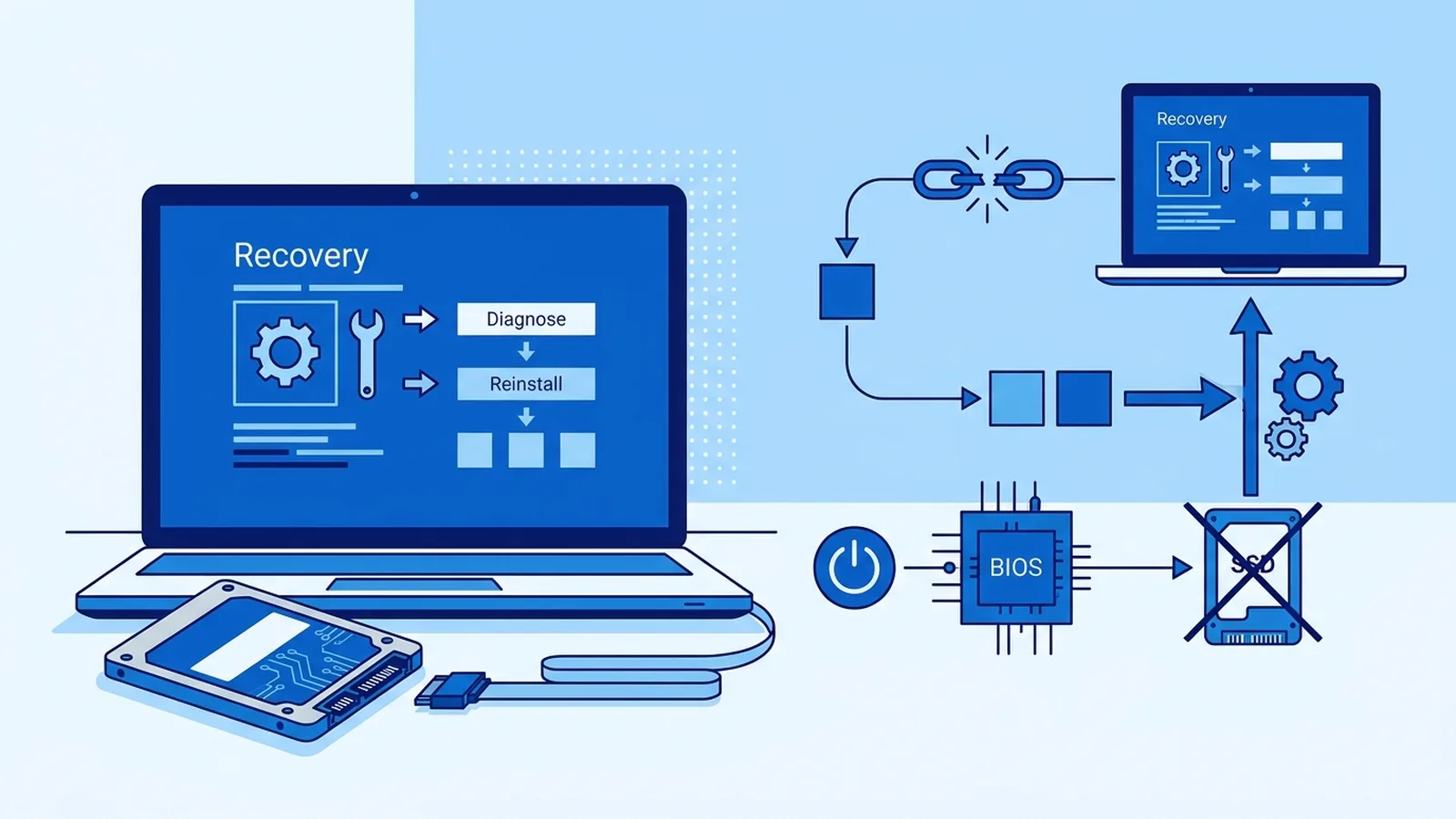
Error 0xc000000e means the Windows boot loader could not find or read a device it needs to start, usually because the Boot Configuration Data (BCD) is damaged or the firmware no longer sees the system drive. In most cases you can repair it from the Windows recovery environment with bootrec, a check of the drive order in BIOS, and a look at the partitions with diskpart. If the drive does not appear in BIOS at all, treat it as a hardware problem before you run any repair command.
Key takeaways
- The blue "Recovery" screen with 0xc000000e is a boot-path failure, not proof that your files are gone.
- Check first whether the drive is listed in BIOS/UEFI. If it is missing there, no software command will fix it.
- Rebuilding the BCD with bootrec solves the majority of cases where the disk is detected but Windows will not load.
- Do not format, reset or reinstall until you know whether the data matters and whether BitLocker is on.
- A drive that vanishes and returns, clicks, or reports errors needs a backup attempt before repairs.
What the 0xc000000e screen is telling you
The message usually reads "Your PC/Device needs to be repaired" followed by "A required device isn't connected or can't be accessed" and the code 0xc000000e. The text is Windows describing its own boot manager: it looked for a boot entry, found nothing usable at the location stored in the BCD, and gave up. The BCD is a small database on the EFI System Partition (UEFI machines) or on the System Reserved partition (older BIOS/MBR machines). It lists which partition holds Windows and how to start it.
That is why the same code appears after very different events: a cloned disk, a failed Windows update, a new SSD added to the machine, a USB stick left plugged in, or a BIOS reset that switched the storage mode. The code points at the path, not at one single fault.
Cause table
| Cause | How to recognise it | Fix section |
|---|---|---|
| Corrupted or missing BCD | Drive is visible in BIOS and in diskpart, partitions look normal, Windows folder is present | Rebuild the BCD with bootrec |
| Wrong boot order in firmware | Started after adding a drive, using a USB stick, or resetting BIOS | Fix drive order in BIOS/UEFI |
| Storage mode changed (AHCI, RAID or Intel RST/VMD) | Happened right after a BIOS update or BIOS defaults reset | Restore the original storage mode |
| EFI or System partition lost or not marked correctly | No small FAT32 partition in diskpart, or the partition has no drive letter after a clone | Check partitions with diskpart |
| File system damage on the Windows partition | Sudden power loss or forced shutdown before the error | Run chkdsk from recovery |
| Failing drive or loose cable | Drive missing in BIOS, disappears at random, slow response, clicking | When to call a professional |
Step 1: Make sure the firmware can see the drive
Before touching Windows, restart and press the BIOS/UEFI key for your machine (commonly F2, Del, F10 or Esc, depending on the brand). Look for the storage or boot page and confirm that your internal SSD or hard disk is listed by model name. If it is, move on. If it is not listed, power off, unplug the charger, and if you are comfortable doing so on a desktop, reseat the SATA or NVMe connection. On a laptop that is under warranty, stop here and book help rather than opening the case.
While you are in the firmware, check the boot order. The first entry should be "Windows Boot Manager" on a UEFI system, or your internal disk on a legacy system. Remove any USB drive, SD card or external disk, then save and exit. A surprising number of 0xc000000e screens end right there.
Step 2: Boot into the recovery environment
You need to reach a command prompt outside the broken installation. Two reliable ways exist:
- Let the PC fail to start three times in a row. It then opens the Windows Recovery Environment by itself. Choose Troubleshoot, then Advanced options, then Command Prompt.
- Create a Windows installation USB on another computer using Microsoft's media creation tool, boot from it, choose Repair your computer on the first screen, then Troubleshoot, Advanced options, Command Prompt.
If the recovery environment asks for a BitLocker recovery key, read the warning in the "what not to do" section below before going further.
Step 3: Rebuild the BCD with bootrec
From the command prompt, run these in order. Each one reports success or an error, so read the output instead of typing them blindly.
bootrec /scanos
bootrec /rebuildbcd
bootrec /fixboot
On a legacy BIOS/MBR disk only, you can also run bootrec /fixmbr first. Skip it on a UEFI/GPT disk, where it is not needed. If the screen you see is about a failed boot selection rather than a missing device, read our guide to error 0xc0000225 as well.
The first command lists Windows installations the tool can find. If it says "Total identified Windows installations: 0", the problem is deeper than the BCD and you should jump to the diskpart check below. If it finds your installation, /rebuildbcd offers to add it to the boot list; answer Y.
On many UEFI systems, bootrec /fixboot returns "Access is denied". That is a known behaviour in recovery media on GPT disks and is not a sign that the disk is dead. The EFI partition simply needs to be mounted and the boot files rewritten with bcdboot, shown in the next part.
Step 4: Check the partitions with diskpart
If bootrec finds nothing, or fixboot is refused, look at how the disk is laid out. In the same command prompt:
diskpart
list disk
select disk 0
list partition
list volume
exit
Use the disk number that matches your internal drive; size is the easiest clue. What you want to see on a modern UEFI machine is a small FAT32 volume (typically 100 to 500 MB, labelled System), a larger NTFS volume holding Windows, and often a small recovery partition. On a legacy BIOS machine you expect a "System Reserved" NTFS partition of a few hundred MB marked active, plus the Windows volume.
Note the letter shown in list volume for the Windows partition. In recovery it is often D: rather than C:, so confirm by running dir D:\Windows before you rely on it.
Rewrite the boot files onto the EFI partition (UEFI/GPT)
If a FAT32 System volume exists but has no letter, assign one and copy fresh boot files from the Windows folder. These diskpart commands only assign a letter and do not erase anything. Never type clean or format here.
diskpart
select disk 0
select volume 2
assign letter=S
exit
bcdboot D:\Windows /s S: /f UEFI
Replace the volume number and the D: letter with the values you saw in your own listing. When bcdboot says "Boot files successfully created", restart and test. This route fixes cases where bootrec /fixboot is denied. If the firmware does not list Windows Boot Manager after the restart, open the firmware setup and choose the disk's UEFI entry manually.
Mark the correct partition active (legacy BIOS/MBR only)
On an MBR disk with System Reserved, the boot partition must be active. In diskpart, select the right partition and run active. Never use this command on a GPT disk; it does not apply there and is a sign you are on the wrong path.
Step 5: Check the Windows volume for damage
If the machine lost power during an update or was forced off, the file system may be inconsistent. From the recovery prompt, run a read check first, then repair if it reports problems:
chkdsk D:
chkdsk D: /f
A chkdsk /f pass on a healthy drive finishes in minutes. If it crawls, reports many bad sectors, or stops with read errors, stop and read the hardware section: continued writing to a failing disk reduces what a recovery specialist can get back.
Step 6: Storage mode and recent firmware changes
If the code appeared right after a BIOS update, a battery failure on an older desktop, or "Load defaults" in the firmware menu, the storage controller mode may have switched between AHCI and RAID/Intel RST. Windows installed under one mode often cannot boot under the other. Open the firmware settings and compare the SATA or storage option with what the machine used before. Change it back, save, and test. Do not keep toggling it repeatedly; two attempts are enough to learn whether it is the cause.
Step 7: Startup Repair and System Restore as a safety net
From Troubleshoot, Advanced options, you can also run Startup Repair. It is slower than the manual commands and sometimes reports "couldn't repair your PC", but it is harmless and worth one attempt if you prefer not to type commands. If System Restore points exist, restoring to a date before the problem began can also rewrite boot-related settings without touching personal files.
Not sure what is wrong? Get a diagnosis first.
Our certified tech can connect remotely, check your software, drivers and backups, and tell you honestly whether the problem needs a hands-on repair.
What NOT to do with a 0xc000000e screen
- Do not reinstall Windows or reset the PC to "just get going" if the files matter. A reset can remove apps and, depending on the option chosen, settings or data. A clean install onto the same partition can overwrite the very data you want back.
- Do not run bootrec /fixmbr on a UEFI/GPT disk, and do not run diskpart "clean" on a disk you have not identified. The clean command wipes the partition table of the selected disk immediately. Always confirm the disk by size and with list partition before selecting it.
- Do not convert MBR to GPT or the other way around as a guess. It is a valid tool in the right situation, but done blindly it can leave the machine unbootable in a new way.
- Do not keep rebooting a drive that is making noise or vanishing from BIOS. Every power cycle is a chance for a weak disk to get worse.
When to stop and call a professional
Software repair assumes a healthy disk. Pause and get expert help if you see any of the following:
- The internal drive is missing from BIOS, or appears for a few seconds and then disappears.
- diskpart shows the disk as RAW, with zero size, or with no partitions on a machine that worked yesterday.
- You hear clicking, repeated spin-up or grinding from a mechanical drive.
- chkdsk stalls for hours or reports many unreadable sectors.
- The disk is BitLocker-encrypted and the recovery key cannot be found.
- The PC holds business records, photos or anything without a recent backup.
In those situations the priority changes from "make it boot" to "copy the data off safely". A technician can image the disk first and repair afterwards. If Windows does start again after your fix, our remote repair service can check disk health and the boot configuration over a secure session, and our Windows support page lists the other startup problems we handle. For a machine that still will not reach the desktop, the guide on a PC that will not start covers the neighbouring symptoms.
How to avoid seeing 0xc000000e again
- Keep a recent backup on an external drive or cloud service, so a boot failure is an inconvenience instead of an emergency.
- Store your BitLocker recovery key somewhere other than the same laptop.
- Shut down properly. Holding the power button during an update is the most common way the BCD and file system get damaged.
- Write down firmware settings (storage mode, boot mode) before a BIOS update, so you can restore them if needed.
- Unplug extra USB storage when you restart after installing updates.
- Watch drive health. Slow starts, freezes and unexplained file errors often come before a drive drops out entirely. Related symptoms are covered in our guides to the critical process died stop code and to blue screens on Windows 11.
FAQ
What does error 0xc000000e mean in Windows?
It means the boot manager could not reach a device or boot entry it needs. The cause is usually a damaged BCD, a wrong boot order, a storage mode change or a drive the firmware cannot see.
Does 0xc000000e mean my hard drive is dead?
Not necessarily. Many cases are only a corrupted BCD or boot order. It becomes a hardware concern if the drive is absent from BIOS or behaves erratically.
Why does bootrec /fixboot say "Access is denied"?
This commonly happens on UEFI/GPT systems from recovery media. Mount the EFI partition with diskpart and rewrite the boot files using bcdboot instead.
Can I fix 0xc000000e without losing my files?
Yes, in most cases. The bootrec, bcdboot and chkdsk steps change boot data and file system structures, not your documents. Avoid Reset this PC and clean installs until your data is safe.
Can 0xc000000e appear after a Windows update?
Yes. An interrupted or failed update can leave the boot configuration inconsistent. Rebuilding the BCD and then retrying the update usually resolves it.
Why did the error start after I added a second drive or USB stick?
Adding storage can change the firmware boot order so it tries the wrong device first. Remove the extra device or set Windows Boot Manager as the first entry in BIOS.
Is BitLocker a problem when repairing the boot files?
It can be. Changes to boot settings may prompt for the recovery key. Locate the key before you change anything, and do not proceed without it.
Should I replace the SSD if the error keeps returning?
If a clean repair does not hold, the drive disappears from BIOS, or a health check shows errors, replacement is the safer route. Copy your data off first.