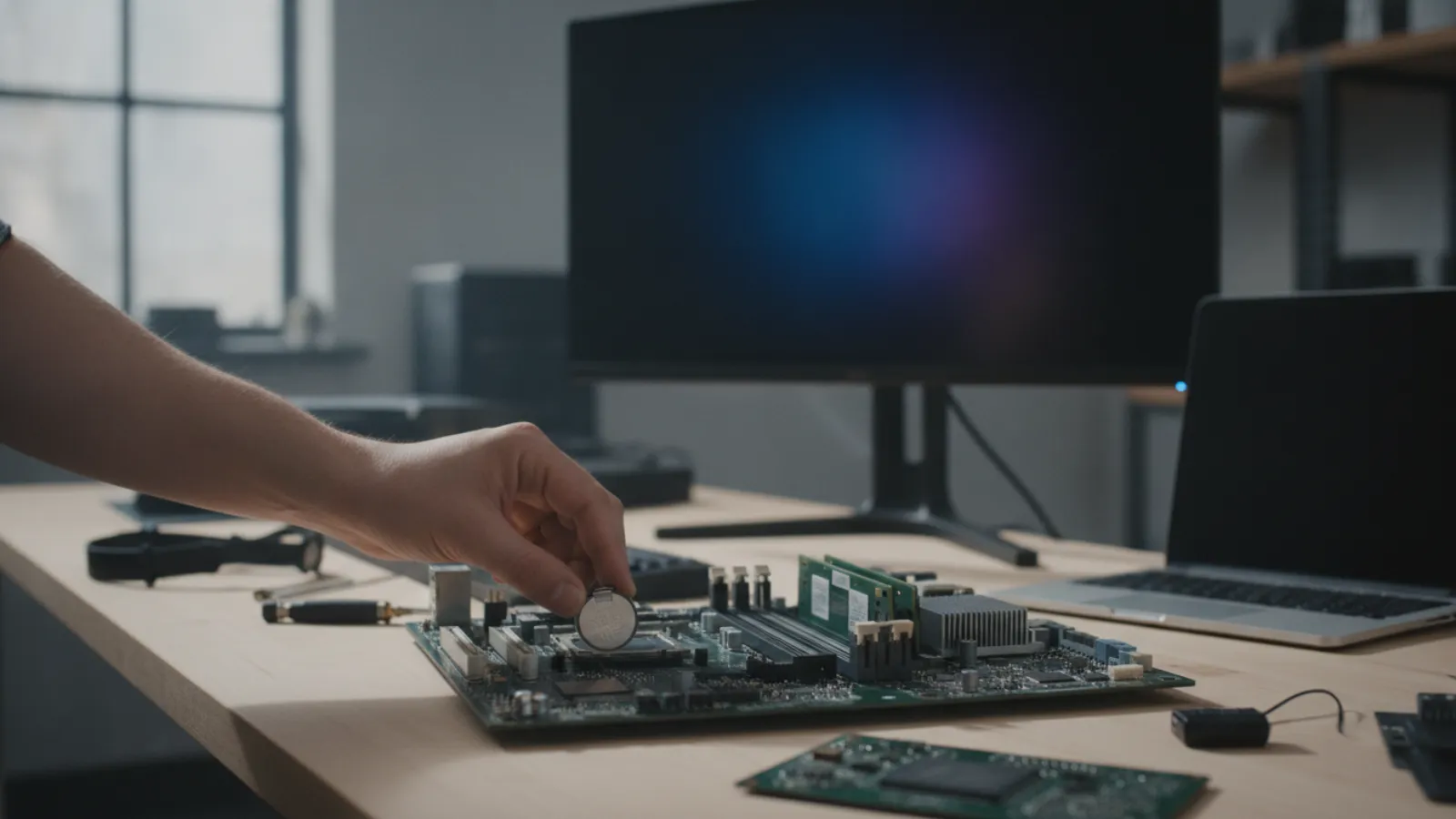
To reset the BIOS when your PC will not boot, switch off and unplug it, then clear the CMOS using the motherboard's CLR_CMOS button, jumper, or by removing the coin cell battery for a few minutes. If you can still enter setup, choose "Load Optimized Defaults" instead. Both restore factory settings.
Key Takeaways
- Resetting the BIOS (clearing the CMOS) restores firmware settings to factory defaults. It does not erase your files or reinstall Windows.
- If you can reach the BIOS screen, use "Load Optimized Defaults". If you cannot, use the jumper, button or battery method.
- Always shut down, switch the power supply off and unplug the power cable before opening the case.
- The reset also clears boot order, memory profiles (XMP or EXPO), fan curves and, on some boards, Secure Boot settings. Write down anything you rely on first.
- Have your BitLocker recovery key to hand. Firmware changes can trigger a recovery prompt on encrypted drives.
- A repeated "CMOS checksum error" or a date that resets on every shutdown usually means the coin cell battery is dead.
What BIOS and CMOS Actually Are
The BIOS (or its modern replacement, UEFI firmware) is the small program stored on a chip on the motherboard that starts the PC before Windows loads. Its settings, such as boot order, memory timings, date and time, and fan control, are kept in a tiny memory area called CMOS. A coin-sized battery, usually a CR2032, keeps that memory powered when the PC is unplugged.
When a setting goes wrong, such as an unstable overclock, a bad memory profile, a failed BIOS update or the wrong boot mode, the PC can fail to start or to show a picture. Clearing the CMOS returns the settings to the manufacturer's defaults, which often brings the PC back to life. It is a common first repair for boot problems that happen after a hardware change or a power cut.
If the PC will not respond at all, with no lights and no fans, start with our guide on what to do when a computer will not turn on, because CMOS is unlikely to be the cause.
Before You Reset: What Will Change
- Boot order: returns to default. Your Windows drive may not be first, so you may need to select it again.
- Memory profiles: XMP, EXPO or DOCP settings switch off, so your RAM may run slower until you re-enable them.
- Storage mode: the SATA setting (AHCI or RAID/Intel RST) may revert. If Windows was installed in one mode and the board resets to another, Windows can fail with an "inaccessible boot device" error. Check this setting first if Windows will not start after a reset.
- Secure Boot and TPM: may return to default values. Windows 11 needs both enabled.
- Date and time: reset, which can cause certificate or login warnings until corrected.
- Passwords: a CMOS reset commonly clears a BIOS setup password on desktop boards. Many laptops store passwords elsewhere, and clearing CMOS will not remove them. Do not rely on a reset for this.
Warning: If your drive is encrypted with BitLocker (the default on many Windows 11 devices), a firmware change can cause Windows to ask for the 48-digit recovery key at the next start. Make sure you can find it, usually in your Microsoft account, before resetting. Also back up important data whenever you can.
Method 1: Reset From the BIOS Menu (If You Can Get In)
- Restart the PC and press the setup key repeatedly as it powers on. Common keys are Delete or F2 for most desktop boards, F2 for many laptops, F10 on some HP machines and F1 on some Lenovo models.
- Look for an option named Load Optimized Defaults, Load Setup Defaults, Load Fail-Safe Defaults, Reset to Default or Restore Factory Settings. On many boards the shortcut key is F9.
- Confirm the prompt.
- Press F10 (or use the Save and Exit menu) to save and restart.
"Optimized" defaults apply the manufacturer's recommended settings. "Fail-safe" defaults use the most conservative settings, which is handy if you are troubleshooting instability. After the restart, reopen the BIOS to set the time and check the boot order and storage mode.
Method 2: Use the CLR_CMOS Button or Jumper
If you cannot see anything on screen or cannot enter setup, use the hardware reset on the motherboard.
Safety and ESD: Shut the PC down, switch the power supply off at the rear switch and unplug the power cable. Press the power button for a few seconds to drain remaining charge. Touch bare metal on the case to discharge static, or wear an anti-static strap. Do not clear the CMOS while the PC is powered.
Using the Clear CMOS button
Many modern boards have a CLR_CMOS or Clear CMOS button on the rear I/O panel, or sometimes on the board edge. With the PC unplugged, press and hold it for around five seconds (check the manual for your board). Release, reconnect power and start up. Do not confuse it with a BIOS Flashback button, which is used to update firmware from a USB drive and is a different function.
Using the CLR_CMOS jumper
- Open the case and locate the jumper, usually near the coin battery or the bottom edge of the board. It is labelled CLR_CMOS, CLRTC, CLEAR CMOS or JBAT1. Your manual shows its exact position.
- Three-pin jumper: the plastic cap normally sits on pins 1 and 2. Lift it off and place it on pins 2 and 3. Wait about 10 seconds. Then move it back to pins 1 and 2.
- Two-pin jumper: with no cap fitted, touch both pins at once with the metal tip of a screwdriver for a few seconds, or use a cap if supplied, following your manual.
- Close the case, reconnect power and switch on. The first start may take longer than usual, and may restart by itself once.
Always return a three-pin jumper to its original position. Leaving it on the clear position will usually prevent the PC from starting or keep wiping the settings.
Method 3: Remove the CMOS Battery
If there is no button or jumper, or the jumper method did not work, remove the coin cell.
- Shut down, switch the power supply off, unplug the power cable, and hold the power button for around 10 to 15 seconds to drain residual power.
- Locate the round silver CR2032 battery on the motherboard.
- Gently release the retaining clip with a small plastic tool or fingernail and lift the battery out. Avoid metal tools that could short contacts.
- Wait. A few minutes is typically enough, and some technicians wait longer for stubborn boards. Pressing the power button once while the battery is out and the PC is unplugged helps discharge residual power.
- Reinstall the battery with the positive side (+, usually the flat face with writing) facing up, as it was.
- Reconnect power and turn the PC on. Expect a message such as "CMOS settings wrong" or "Press F1 to enter setup". This is normal after a reset.
If the battery is more than a few years old, or the clock resets every time you shut down, replace it with a new CR2032. They cost very little and are available at most shops.
Laptops: Resetting When You Cannot Boot
Laptops vary a lot. The safest general approach is to follow the manufacturer's instructions for your model. These are the usual options:
- Enter the BIOS menu and load defaults if the screen works.
- Do a hard reset or power drain. Unplug the charger, remove the battery if it is removable, and hold the power button for about 30 seconds. Reconnect and start. Many "stuck" laptops recover this way. Some Dell and Lenovo models also have a documented real-time clock (RTC) reset procedure, which usually involves unplugging power and holding the power button for a set time. Check your support page.
- Use the CMOS reset pinhole or battery connector. A few laptops have a small hole or an internal CMOS battery with a connector. Opening a laptop may void the warranty, so only do this if your manual describes it.
Many laptops store supervisor passwords in a separate chip, so a CMOS reset does not remove them. If you are locked out by a BIOS password you do not know, contact the manufacturer or a repair service instead of trying to bypass it.
What to Check After the Reset
- Enter setup and set the date and time.
- Check the boot order and put your Windows drive first.
- Check the storage mode. Use the same setting as before (AHCI or RAID/Intel RST). If you do not remember, AHCI is the usual default, and changing it on an existing Windows install without preparation can cause a boot failure.
- Re-enable XMP, EXPO or DOCP if your RAM was running with a memory profile. Enabling it should only be done if the system is stable.
- Confirm Secure Boot and TPM are enabled if you use Windows 11.
- Save and exit, then confirm that Windows starts.
If Windows now starts into a repair screen, see how to fix the Windows 11 automatic repair loop, or try starting Windows 11 in Safe Mode to isolate a driver or update problem. Note that resetting the BIOS is not the same as resetting Windows. If you actually want to wipe and refresh the operating system, read our guide to resetting Windows 10.
If Clearing the CMOS Does Not Fix the Boot Problem
- Repeat the reset properly. A short reset with the power cable still connected, or a battery removal of only a few seconds, may not fully clear the memory.
- Test the RAM with one stick at a time. Memory problems frequently look like BIOS problems.
- Test the graphics card and cables. Our article on a PC that turns on with no display explains the sequence.
- Listen for beeps or read the debug LEDs. See motherboard beep codes explained.
- Check the power supply, as an unstable supply can corrupt settings or stop startup. See how to test a PC power supply.
- Consider a BIOS update or recovery. Some boards need a newer BIOS to support a new CPU, and a failed update can leave the firmware corrupt. Follow the manufacturer's recovery process exactly, because a mistake can make things worse.
When to Call a Professional
Ask for help if the PC still fails to boot after a correct CMOS reset, if a BIOS update has failed, if a dead battery keeps returning on a new one, or if you notice burn marks, swollen capacitors or liquid damage on the board. The cause may lie with the motherboard, the firmware chip or the power circuits. We repair motherboards and can also support Windows startup problems remotely when the computer still boots. See our motherboard repair service in Montreal and our remote computer repair in Canada.
Not sure what is wrong? Get a diagnosis first.
Our certified tech can connect remotely, check your software, drivers and backups, and tell you honestly whether the problem needs a hands-on repair.
Frequently Asked Questions
Will resetting the BIOS delete my files?
No. Resetting the BIOS or clearing the CMOS only restores firmware settings. Your files, programs and Windows installation stay on the drive. However, changed settings such as the storage mode or boot order can temporarily stop Windows from starting until corrected.
How long should I leave the CMOS battery out?
A few minutes is generally enough, and some people wait longer to be sure. Unplug the PC, hold the power button to drain residual charge, and then wait before replacing the battery.
Is resetting the BIOS safe?
Yes, when done with the power off and unplugged. The main risks are static damage if you do not ground yourself, and bending the battery clip. A reset is a normal troubleshooting step recommended by motherboard manufacturers.
Why does my PC keep showing a CMOS checksum error?
This usually means the coin cell battery is flat or poorly seated, so settings cannot be stored. Replacing the CR2032 battery normally fixes it. If it returns with a new battery, the motherboard may have a fault.
Does resetting BIOS remove a BIOS password?
On many desktop motherboards, yes. On many laptops, no, because the password is held in separate non-volatile memory. Do not count on a reset to bypass a laptop password.