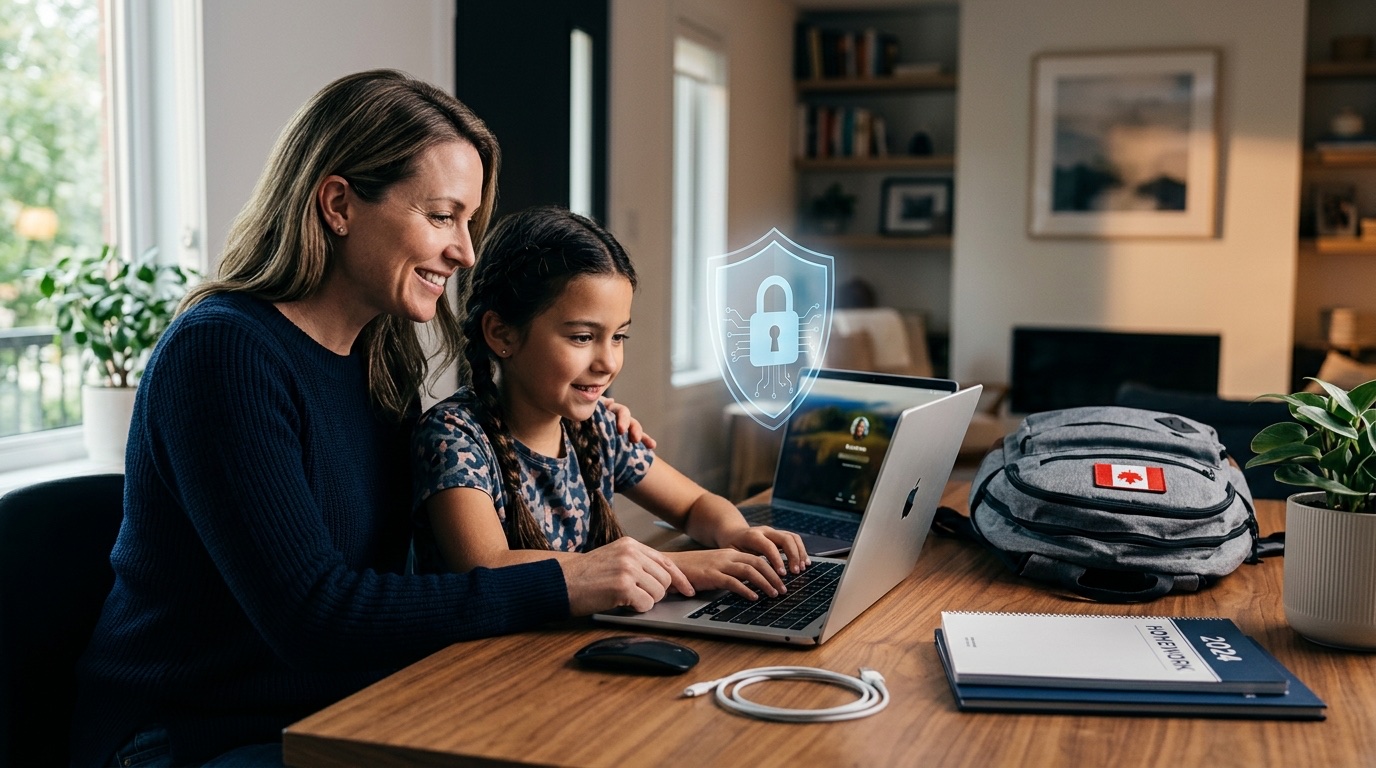
Late August and early September create a very specific, very predictable spike in unmanaged devices: freshly purchased laptops and tablets for students, and freshly hired employees and interns starting their first week of work. Both groups have something important in common that rarely gets said out loud — a brand-new device, a brand-new set of logins, and, in a lot of cases, nobody who has walked them through what "secure" actually looks like before they start using it for real. That gap is exactly where most of the year's avoidable incidents, from a teenager's hijacked gaming account to a business email compromise traced back to an unprotected intern laptop, actually begin.
This guide treats back-to-school season as the single security checkpoint it actually is, for two audiences at once: parents setting up a device for a child heading back to school, and small business owners onboarding new employees or seasonal staff around the same calendar window. It covers what to do to a new device before handing it over, a budget comparison of parental control and antivirus options, the scams specifically shaped to catch students and young people off guard, a matching checklist for secure employee onboarding, three realistic Canadian scenarios, and honest cost ranges for closing the gap on both sides.
Who wrote this guide
This guide was written and reviewed by IT Cares certified technicians based on setting up new devices for both families and small businesses across Quebec and Canada every September. The pattern repeats every year: the device itself is rarely the problem — it's the ten to twenty minutes of setup that gets skipped because everyone's in a hurry to get the school year or the new hire's first week started. This guide is that ten to twenty minutes, laid out plainly.
Setting Up a New Laptop or Tablet for a Child, Step by Step
A new device should be secured before it's fun, not after. The order below matters — doing these steps before a child ever opens a browser, downloads an app, or joins a group chat closes the window where most of the avoidable risk actually lives.
Update the operating system before anything else
Connect to Wi-Fi and install every pending Windows, macOS, iPadOS, or Chrome OS update before creating accounts or installing a single app. Devices sitting in warehouses or on store shelves are routinely months behind on security patches, and an unpatched device is meaningfully easier to compromise than an up-to-date one.
Create a standard account for the child, not an administrator account
Most new devices default to setting up the first account as an administrator, which gives full control to install anything and change any setting. A standard, non-admin account for a child limits what can be installed or changed without a parent's approval — a simple setting that meaningfully reduces the damage a bad download or scam link can do.
Install real antivirus or endpoint protection
Built-in protection (Windows Defender, macOS's native safeguards) is a solid baseline, but a device that will download games, browser extensions, and files from many different sources benefits from a dedicated antivirus layer, particularly one that includes web and phishing-link protection rather than just file scanning.
Turn on parental controls and content filtering
Enable a family safety tool — Microsoft Family Safety, Google Family Link, Apple Screen Time, or a dedicated third-party app — to filter content, set screen time limits, and require approval for new app installs. See the comparison table below for how these options differ by budget and platform.
Set up a password manager and unique passwords for every new account
School accounts, streaming logins, and game accounts add up fast, and reused passwords are exactly what makes a single breach spread across a child's entire digital life. A family password manager (see our password manager guide) makes unique passwords realistic without anyone having to memorize a dozen of them.
Have the conversation before handing the device over
Walk through, in plain language, what a scam message looks like and — most importantly — what to do about it: tell a parent, don't respond, don't send money or gift card codes, don't feel embarrassed about asking. This single conversation, done before the device is in daily unsupervised use, does more than any single piece of software.
Comparison Table: Parental Control & Antivirus Options by Budget
There's no single right answer here — the right tool depends on the platforms your family already uses and how much hands-on management you want. The table below groups the realistic options by budget tier.
| Option | Tier | Approx. Cost (CAD) | Platforms | Best For |
|---|---|---|---|---|
| Windows Defender + Microsoft Family Safety | Free | $0 | Windows, Xbox, Android | Windows-first households wanting screen time + content filtering at no cost |
| macOS/iOS Screen Time + built-in protections | Free | $0 | Mac, iPhone, iPad | Apple-only households; app limits, content restrictions, downtime scheduling |
| Google Family Link | Free | $0 | Android, Chromebook | Android/Chromebook households, app approval and location features |
| Bark | Budget | ~$14-20/mo | iOS, Android, Windows, Mac | Monitoring texts, social apps, and email content for concerning language, not just screen time |
| Qustodio Premium | Budget/Mid | ~$99-140/yr | Windows, Mac, iOS, Android, Kindle | Cross-platform families wanting one dashboard for every device type |
| Norton Family / Norton 360 Deluxe | Mid | ~$50-100/yr | Windows, Mac, iOS, Android | Families wanting antivirus and parental controls bundled under one subscription |
| Bitdefender Total Security + Parental Control | Mid/Premium | ~$60-100/yr | Windows, Mac, iOS, Android | Households prioritizing strong malware protection with parental controls added on |
A practical rule of thumb
If your household is already all-in on one ecosystem (all Apple, or mostly Windows and Android), the free built-in option is usually enough to start with. Consider a paid, cross-platform tool once devices are mixed across brands, once a child is old enough to be active on social apps and group chats rather than just games, or once you want message-content alerts rather than just screen-time and content-filter controls.
The Back-to-School Security Checklist (Family + Small Business)
Print this, save it, or just work through it once before the device or the new hire is out the door. Most households and most small businesses will find several unchecked items — that's normal, and it's exactly what this checklist is meant to close.
For a New Student Device
- ☐ OS and all security updates installed before first use
- ☐ Standard (non-admin) account created for the child
- ☐ Real antivirus or endpoint protection installed
- ☐ Parental control / family safety tool enabled
- ☐ App store restrictions and screen time limits set
- ☐ Unique, strong passwords via a password manager on every account
- ☐ Backup or recovery method set up (school + personal accounts)
- ☐ "What a scam looks like" conversation had before handoff
For a New Employee / Intern
- ☐ Device provisioned and updated before day one, not during it
- ☐ Least-privilege business account created (not full admin rights)
- ☐ Managed antivirus / endpoint protection deployed
- ☐ MFA enabled on email and core business systems day one
- ☐ Personal-device (BYOD) use covered by a signed policy, if applicable
- ☐ Password manager access granted for business logins
- ☐ Phishing-reporting process explained in week one
- ☐ Offboarding checklist already exists for when this hire eventually leaves
Setting up more than a couple of devices this September?
Whether it's three kids' laptops or a wave of new hires, our team can handle the setup checklist properly so nothing gets skipped in the rush.
The Scams That Specifically Target Students and Young People
Back-to-school season doesn't just bring new devices — it brings a predictable wave of scams built specifically around the platforms and situations young people are actually in. These aren't generic warnings; they follow a recognizable pattern every year.
Gaming and in-app scams
Fake "free Robux," "free skins," or "free V-Bucks" links circulating on Discord, Roblox, and in-game chat are among the most common scams targeting kids specifically, typically leading to a phishing page designed to steal a game account's login credentials, which are then used to steal purchased items or resell the account itself.
Sextortion and social engineering
An increasingly common and serious pattern involves a stranger — often posing as a peer — building quick trust with a young person on a social or gaming platform, then attempting to obtain compromising images or information before threatening exposure unless payment is made. The Canadian Centre for Child Protection has flagged this as a growing threat specifically among teens, and the most effective defense is a young person knowing, in advance, that they can tell a trusted adult immediately without fear of getting in trouble themselves.
Fake scholarship, job, and "brand ambassador" offers
Scammers target students, particularly older teens and young adults heading to college or a first job, with fake scholarship notifications or "easy money" job and brand-ambassador offers that eventually ask for banking details or an upfront "processing fee." These offers are built to feel plausible during a season when real scholarship and part-time job offers are also genuinely landing in inboxes.
AI voice-cloning ("grandparent" and "in trouble") scams
A newer variant uses AI voice-cloning technology to impersonate a family member — often specifically a child or grandchild — in a distressed phone call claiming to need urgent money, sometimes for bail, a hospital bill, or a stranded-abroad situation. This scam targets parents and grandparents directly, but it starts with a compromised or scraped voice sample, which is one more reason to be thoughtful about how much audio and video of kids ends up publicly posted online.
The pattern that matters most
Nearly every scam above shares the same two ingredients: urgency ("act right now") and secrecy ("don't tell anyone"). Naming that specific combination directly in a conversation with a child — not a list of specific scams, which change constantly, but the pattern itself — tends to be the single most durable piece of protection available, since it holds up even against scams that don't exist yet.
Strong Passwords and MFA — for Kids and New Hires Alike
The exact same two controls that protect a business account protect a child's gaming or school account: a unique password for every login, and a second factor wherever it's available. The mechanics are identical; only the audience changes.
For families, a password manager removes the burden of remembering a dozen different passwords, which is precisely why kids (and, honestly, most adults) reuse the same one everywhere. Our password manager guide compares the family-friendly options and walks through setup. For accounts that support it — Google, Apple ID, Microsoft — enabling MFA on a child's account closes the gap left by a password that gets guessed, phished, or leaked in an unrelated breach.
For new employees, the same logic applies on day one rather than being treated as a "later" task: a business password manager for shared and individual logins, and MFA enabled on email and core systems before the account is used for anything sensitive. If new hires or interns will be using personal devices rather than company-issued ones, that use needs to be covered by an actual written policy rather than an informal understanding — our BYOD policy guide covers exactly how to set that up, including a sample policy you can adapt directly.
Secure IT Onboarding for New Employees and Interns (The SMB Angle)
September is one of the busiest hiring windows of the year for many Canadian small businesses — new graduates, returning co-op students, seasonal retail and hospitality staff, and interns all tend to start around the same few weeks. That concentration creates exactly the kind of rush where onboarding security gets treated as optional, or as something to "get to later."
Provision the device before day one, not during it
A laptop configured, updated, and enrolled in management before the new hire's first morning avoids the common scramble of setting up security basics while someone's already trying to start their job. This is also the point where a company-owned device with a standard security image beats an unmanaged BYOD arrangement.
Create a least-privilege account, not a broad-access one
New employees — especially short-term interns and seasonal staff — rarely need access to every system on day one. Granting access to only what the specific role requires, and expanding it deliberately as needed, limits what's exposed if that account is ever compromised.
Enroll MFA and endpoint protection immediately
Treat multi-factor authentication and antivirus/endpoint protection as part of account creation itself, not a follow-up task. A new account is at its most exposed in its first days, which makes this exactly the wrong moment to leave MFA "for later."
Cover personal devices with a real BYOD policy
Interns and part-time staff frequently end up checking work email or accessing shared files from a personal phone or laptop within the first week, often informally. If that's going to happen anyway, it should happen under a written policy and mobile device management rather than by default — see our full BYOD policy guide for a sample policy to adapt.
Explain the phishing-reporting process in week one
New hires are a known target for business email compromise attempts specifically because they don't yet know what's normal at your company — an unusual request from "the owner" or "a manager" doesn't yet register as unusual to them. A five-minute explanation of what to do with a suspicious email, given in the first week rather than assumed, closes a real and commonly exploited gap.
Have this checklist ready before the offer is even accepted
Businesses without an in-house IT person often find that onboarding security quality depends entirely on which manager happens to be handling it that week. This is precisely the kind of consistency gap a managed IT services provider is built to close — a standardized process that runs the same way every time, seasonal hiring surge or not.
Illustrative Canadian Scenarios
The following are composite, illustrative scenarios based on patterns we commonly see across Canadian families and small businesses during back-to-school season — not specific named clients — meant to show how this plays out in practice.
An Ottawa family avoids a Roblox phishing scam on day two of a new laptop
A composite Ottawa family bought two new laptops for their kids, aged 10 and 13, ahead of the new school year, and set up Microsoft Family Safety with content filtering and app approval before either child logged in for the first time. Two days later, the 13-year-old received a Discord message with a "free skins" link from an account posing as a classmate. The family safety tool's web filtering blocked the linked page automatically, and the child — having already had the "urgency and secrecy" conversation — screenshotted it and told a parent anyway. Nothing was compromised, and the incident became a useful, low-stakes example for future conversations rather than a real one.
A Montreal marketing agency's September intern wave exposes a device policy gap
A composite Montreal marketing agency brought on four university interns in early September, each using a personal laptop to access shared drives and email under an informal "just get set up and dive in" approach with no BYOD policy or MDM enrollment. Within the first two weeks, one intern's personal laptop picked up malware from an unrelated browser extension, and because business email credentials were saved in that browser, the agency's shared marketing inbox showed signs of unauthorized access attempts shortly after. The agency worked with IT Cares to retroactively enroll all four personal devices in mobile device management, separate business and personal data via containerization, and adopt a written BYOD policy — the exact process our BYOD policy guide walks through — before the next intern group started that winter.
A Calgary home-based business owner sets up her teen and a new part-time hire the same week
A composite Calgary small business owner running a home-based bookkeeping practice bought her 15-year-old a laptop for high school the same week she onboarded a part-time bookkeeping assistant. Applying the same basic checklist to both — OS updates first, a standard (not admin) account, real antivirus, and MFA on any account touching sensitive data — took roughly the same twenty minutes per device. The owner specifically credited having one consistent checklist, rather than treating "family setup" and "business setup" as entirely separate problems, with making the whole week manageable rather than overwhelming.
What This Actually Costs — Family and Small Business Budgets
Neither side of this needs to be expensive. For most households and most small businesses, the majority of what matters is already included in software you're likely paying for anyway, or is free outright.
Family budget
- Built-in antivirus + free parental control tool: $0 — Windows Defender or macOS protections plus Microsoft Family Safety, Google Family Link, or Apple Screen Time.
- Paid cross-platform parental control suite: Roughly $50-$140 CAD/year for tools like Qustodio, Norton Family, or Bark, depending on features and number of devices.
- Family password manager: Often $0-$50 CAD/year for a family plan, and frequently included with an existing antivirus or Apple/Google subscription.
- One-time professional setup: If you'd rather have a technician configure everything correctly across multiple devices at once, this is typically a modest one-time service call rather than a recurring cost.
Small business budget
- MFA on core business systems: Usually $0 extra — included in standard Microsoft 365 and Google Workspace business plans most companies already pay for.
- Managed antivirus / endpoint protection per device: Roughly $3-$8 CAD per device per month for a managed solution, often bundled into a broader managed IT services plan.
- Mobile device management (for BYOD interns/staff): Roughly $3-$10 CAD per device per month; see our BYOD guide for a full cost breakdown.
- Business password manager (per seat): Typically $3-$8 CAD per user per month for a team plan.
- Standardized onboarding process via a managed IT provider: Costs vary by provider and business size, but the real return is consistency — the same secure setup every time, regardless of hiring volume or which manager is running point that week. See our managed IT services guide for how this typically gets structured and priced.
Measured against the alternative — a compromised student account, a lost afternoon dealing with a scam attempt, or a business email compromise traced back to an unmanaged intern laptop — the cost of doing this properly up front is modest on both sides of the ledger.
Frequently Asked Questions
Ready to Set Up Devices the Right Way This Back-to-School Season?
IT Cares can configure new student laptops, onboard new employees securely, or both — with no judgment for wherever your setup currently stands.
Comments (3)
Did the standard-account-not-admin-account thing for my son's new laptop this week, took two minutes and I hadn't even thought about it before reading this. Small thing that apparently matters a lot.
Our office is bringing on three co-op students this month and we've genuinely never had a real onboarding checklist for their laptops. Printing the SMB half of this and using it next week.
The AI voice-cloning scam part genuinely surprised me — hadn't connected that to why I should think twice about posting videos of my kids talking. Good reminder.
Leave a Comment